Transfer Bit Depth#
Transfer Bit Depth를 줄이면 카메라의 frame rate를 높일 수 있습니다. Transfer Bit Depth를 높이면 Quality가 향상될 수 있습니다.
기능 사용#
Transfer Bit Depth를 사용하는 이유#
Transfer Bit Depth를 사용하면 내부 이미지 처리 중에 전송될 데이터의 비트 심도를 변경할 수 있습니다. 이는 센서의 고유한 특성으로 인해 Sensor Bit Depth 변경이 권장되지 않는 경우에 유용합니다.
중요
카메라에서 Transfer Bit Depth 기능을 사용할 수 있는 경우, Sensor Bit Depth 기능 대신 항상 이 기능을 사용하세요. 결과가 만족스럽지 않은 경우에만 Sensor Bit Depth를 변경하세요.
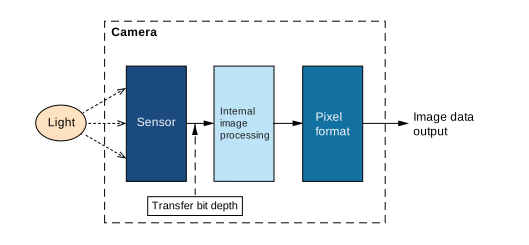
Transfer Bit Depth를 설정할 때는 다음 지침이 적용됩니다.
- 최적의 Quality를 얻으려면 Transfer Bit Depth를 높은 값으로 설정하십시오.
Transfer Bit Depth가 높으면 카메라의 내부 이미지 계산이 더 높은 비트 심도를 기반으로 수행되므로 Quality가 향상될 수 있습니다. - 최적의 성능을 얻으려면 Transfer Bit Depth를 낮은 값으로 설정하십시오.
Sensor Bit Depth가 낮으면 전송되는 데이터 양이 줄어들어 성능이 향상될 수 있습니다.
사용 사례#
일부 카메라의 경우 8비트 Pixel Format을 사용할 때 Sensor Bit Depth가 자동으로 10비트로 설정됩니다. 이는 사용된 센서에 따라 다르며 센서의 고유한 특성 때문입니다. 이러한 센서의 경우 프레임 레이트 증가 등을 위해 Sensor Bit Depth를 낮은 값으로 변경하면 특정 다른 센서 특성에 영향을 미치므로 권장되지 않습니다.
이때 Transfer Bit Depth가 유용하게 사용됩니다. Sensor Bit Depth와 독립적으로 값을 설정하여 프레임 레이트 증가 등의 이점을 얻을 수 있습니다.
Transfer Bit Depth Mode#
Transfer Bit Depth 모드를 사용하면 사용된 Pixel Format과 독립적으로 Transfer Bit Depth를 설정할 수 있는지 여부를 정의할 수 있습니다. 다음을 설정할 수 있습니다. BslTransferBitDepthMode 파라미터를 설정하십시오:
Auto: 사용하는 항목에 따라 Transfer Bit Depth가 자동으로 조정됩니다 픽셀 형식 . 기본 설정입니다. 예를 들어 Pixel Format을 Bayer 12로 설정하면 Transfer Bit Depth가 자동으로 12비트로 설정됩니다.Manual: 사용하는 Pixel Format과 독립적으로 Transfer Bit Depth를 설정할 수 있습니다. 예를 들어 내부 이미지 처리에 사용되는 10비트 데이터를 기반으로 8비트 이미지 데이터를 출력하도록 카메라를 구성할 수 있습니다(Pixel Format = Mono 8, Transfer Bit Depth = 10 bit).
Transfer Bit Depth 설정#
- 파라미터를 원하는
BslTransferBitDepthMode파라메터Manual. - 파라미터를 원하는
BslTransferBitDepth매개변수를 원하는 값으로 설정합니다.
예를 들어 매개변수를 다음으로 설정합니다.Bpp1212 bpp(픽셀당 비트 수)의 비트 심도를 설정합니다.
샘플 코드#
// Set the pixel format to Mono 8
camera.PixelFormat.SetValue(PixelFormat_Mono8);
// Set the transfer bit depth mode to Manual
camera.BslTransferBitDepthMode.SetValue(BslTransferBitDepthMode_Manual);
// Set the transfer bit depth to 10 bit
camera.BslTransferBitDepth.SetValue(BslTransferBitDepth_Bpp10);
INodeMap& nodemap = camera.GetNodeMap();
// Set the pixel format to Mono 8
CEnumParameter(nodemap, "PixelFormat").SetValue("Mono8");
// Set the transfer bit depth mode to Manual
CEnumParameter(nodemap, "BslTransferBitDepthMode").SetValue("Manual");
// Set the transfer bit depth to 10 bit
CEnumParameter(nodemap, "BslTransferBitDepth").SetValue("Bpp10");
// Set the pixel format to Mono 8
camera.Parameters[PLCamera.PixelFormat].SetValue(PLCamera.PixelFormat.Mono8);
// Set the transfer bit depth mode to Manual
camera.Parameters[PLCamera.BslTransferBitDepthMode].SetValue(PLCamera.BslTransferBitDepthMode.Manual);
// Set the transfer bit depth to 10 bit
camera.Parameters[PLCamera.BslTransferBitDepth].SetValue(PLCamera.BslTransferBitDepth.Bpp10);
/* Macro to check for errors */
#define CHECK(errc) if (GENAPI_E_OK != errc) printErrorAndExit(errc)
GENAPIC_RESULT errRes = GENAPI_E_OK;  /* Return value of pylon methods */
/* Set the pixel format to Mono 8 */
errRes = PylonDeviceFeatureFromString(hdev, "PixelFormat", "Mono8");
CHECK(errRes);
/* Set the transfer bit depth mode to Manual */
errRes = PylonDeviceFeatureFromString(hdev, "BslTransferBitDepthMode", "Manual");
CHECK(errRes);
/* Set the transfer bit depth to 10 bit */
errRes = PylonDeviceFeatureFromString(hdev, "BslTransferBitDepth", "Bpp10");
CHECK(errRes);
pylon Viewer를 사용하여 파라미터를 손쉽게 설정할 수도 있습니다.