Scaling#
기능 사용#
작동 방식#
Scaling 기능은 다음을 사용하여 크기를 조절할 수 있는 가상 센서 평면을 도입합니다. BslScalingFactor 파라미터. 다음 BslScaledSensorWidth 및 BslScaledSensorHeight 파라미터는 가상 센서의 현재 크기를 나타냅니다.
- Scaling factor를 낮게 설정하면 가상 센서의 크기가 증가합니다.
- Scaling factor를 높게 설정하면 가상 센서의 크기가 감소합니다.
공식
가상 센서 크기 = 물리적 센서 크기 / BslScalingFactor
예: 카메라 센서 해상도가 2592 x 1944픽셀이라고 가정해 보겠습니다. 다음을 설정하는 경우 BslScalingFactor 파라미터를 0.5로 설정하면 가상 센서는 물리적 센서 크기의 두 배인 5184 x 3888픽셀이 됩니다.
확대#
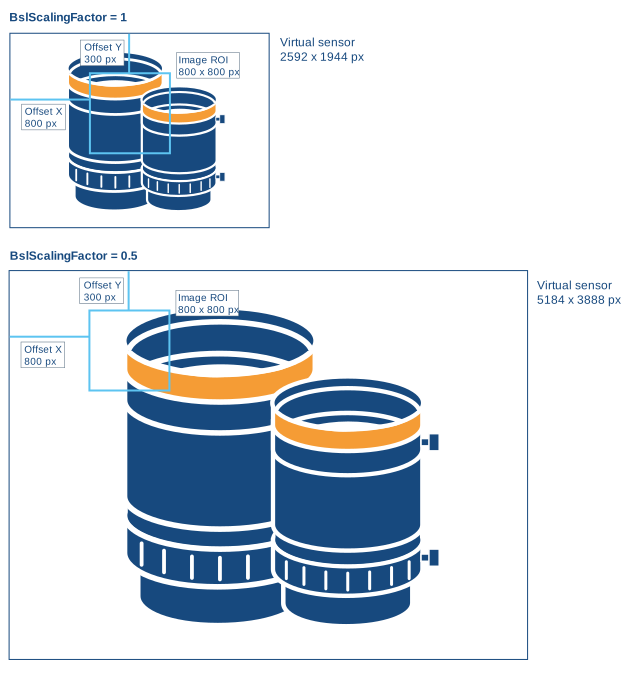
확대하려면 다음을 설정하십시오. BslScalingFactor 파라미터를 다음 값으로 설정합니다. lower 1.0보다 큽니다.
이렇게 하면 Image ROI 크기와 위치는 유지된 채 가상 센서의 크기가 증가합니다.
예: 아래 예시에서 다음 BslScalingFactor 파라미터는 0.5로 설정됩니다. Image ROI 크기와 위치는 유지된 채 가상 센서의 크기가 절반으로 줄어듭니다.
결과적으로 이미지 콘텐츠가 확대되어 좌측 상단으로 이동한 것처럼 표시됩니다.
축소#
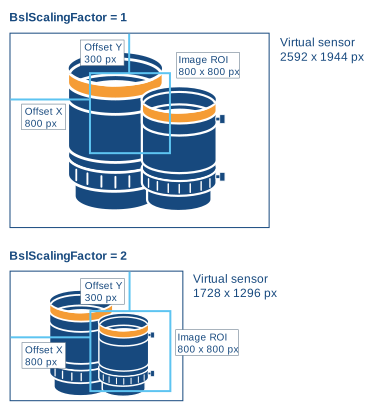
축소하려면 다음을 설정하십시오. BslScalingFactor 파라미터를 다음 값으로 설정합니다. 더 높게 1.0보다 큽니다.
이렇게 하면 Image ROI 크기와 위치는 유지된 채 가상 센서의 크기가 감소합니다.
정보
가상 센서는 Image ROI보다 작을 수 없습니다.
따라서 축소하기 전에 Image ROI의 너비와 높이를 줄여야 할 수 있습니다.
예: 아래 예시에서 다음 BslScalingFactor parameter는 2.0으로 설정됩니다. Image ROI 크기와 위치는 동일하게 유지된 채 가상 센서의 크기가 두 배로 커집니다.
그 결과, 이미지 콘텐츠가 축소되어 우측 하단으로 이동한 것처럼 나타납니다.
샘플 코드#
// Set scaling to 0.5, i.e., set the size of the
// virtual sensor to 2x the size of the physical sensor
camera.BslScalingFactor.SetValue(0.5);
// Get the size of the virtual sensor
double scaledWidth = camera.BslScaledSensorWidth.GetValue();
double scaledHeight = camera.BslScaledSensorHeight.GetValue();
// Disable scaling
camera.BslScalingFactor.SetValue(1.0);
INodeMap& nodemap = camera.GetNodeMap();
// Set scaling to 0.5, i.e., set the size of the
// virtual sensor to 2x the size of the physical sensor
CFloatParameter(nodemap, "BslScalingFactor").SetValue(0.5);
// Get the size of the virtual sensor
double scaledWidth = CFloatParameter(nodemap, "BslScaledSensorWidth").GetValue();
double scaledHeight = CFloatParameter(nodemap, "BslScaledSensorHeight").GetValue();
// Disable scaling
CFloatParameter(nodemap, "BslScalingFactor").SetValue(1.0);
// Set scaling to 0.5, i.e., set the size of the
// virtual sensor to 2x the size of the physical sensor
camera.Parameters[PLCamera.BslScalingFactor].SetValue(0.5);
// Get the size of the virtual sensor
double scaledWidth = camera.Parameters[PLCamera.BslScaledSensorWidth].GetValue();
double scaledHeight = camera.Parameters[PLCamera.BslScaledSensorHeight].GetValue();
// Disable scaling
camera.Parameters[PLCamera.BslScalingFactor].SetValue(1.0);
/* Macro to check for errors */
#define CHECK(errc) if (GENAPI_E_OK != errc) printErrorAndExit(errc)
GENAPIC_RESULT errRes = GENAPI_E_OK;  /* Return value of pylon methods */
double scaledWidth = 0;
double scaledHeight = 0;
/* Set scaling to 0.5, i.e., set the size of the */
/* virtual sensor to 2x the size of the physical sensor */
errRes = PylonDeviceSetFloatFeature(hdev, "BslScalingFactor", 0.5);
CHECK(errRes);
/* Get the size of the virtual sensor */
errRes = PylonDeviceGetFloatFeature(hdev, "BslScaledSensorWidth", &scaledWidth);
CHECK(errRes);
errRes = PylonDeviceGetFloatFeature(hdev, "BslScaledSensorHeight", &scaledHeight);
CHECK(errRes);
/* Disable scaling */
errRes = PylonDeviceSetFloatFeature(hdev, "BslScalingFactor", 1.0);
CHECK(errRes);
# Set scaling to 0.5, i.e., set the size of the
# virtual sensor to 2x the size of the physical sensor
camera.BslScalingFactor.Value = 0.5
# Get the size of the virtual sensor
scaledWidth = camera.BslScaledSensorWidth.Value
scaledHeight = camera.BslScaledSensorHeight.Value
# Disable scaling
camera.BslScalingFactor.Value = 1.0
pylon Viewer를 사용하여 매개변수를 간편하게 설정할 수도 있습니다.